Audience Management Overview
The Audience Management workspace in DriveMetaData (DMD) enables marketing operators, growth teams, and analysts to build precise, no-code customer segments from customer profiles, behavioral events, commerce orders, and AI-driven predictions.
Audiences built here serve as the foundational targeting criteria for automated omnichannel messaging, paid ad network synchronization (Meta, Google, TikTok), and deep cohort reporting.
1. Module Overview & Business Outcomes
Audience Builder solves three critical enterprise marketing challenges:
- Self-Serve Rule Construction: Compose complex, multi-tiered Boolean logic (
AND,OR,NOT) without writing SQL or ClickHouse query scripts. - Instant Sizing & QA Before Launch: Calculate estimated reach and inspect actual customer preview rows prior to saving or pushing to live campaigns.
- Continuous Synchronization: Saved definitions integrate directly with activation destinations, automatically refreshing audience membership as customer events stream in.
Primary Operational Triggers
- Cart & Checkout Abandonment: Target visitors who showed high intent in the last 7 days but have not made a purchase.
- LTV Cohort Retargeting: Sync customers with high lifetime value to lookalike ad campaigns.
- Churn Prevention: Isolate accounts exhibiting declining engagement metrics over a 60-day window.
2. Prerequisites, Entitlements & RBAC
Before constructing audiences, verify the following prerequisites:
| Requirement | Description |
|---|---|
| Tenant Role | Requires Editor or Admin role to build and save audiences. Viewer role allows inspecting existing rules and previews only. |
| Connected Data Sources | At least one primary customer identifier table and event stream (e.g., website tracking, mobile SDK, or Shopify sync) must be mapped in the field catalog. |
| PII Clearance | To inspect unmasked contact information (email, phone) in preview mode, your user profile must have the pii_read permission assigned. |
3. Product Workspace Anatomy
The workspace is organized into five coordinated operational zones:
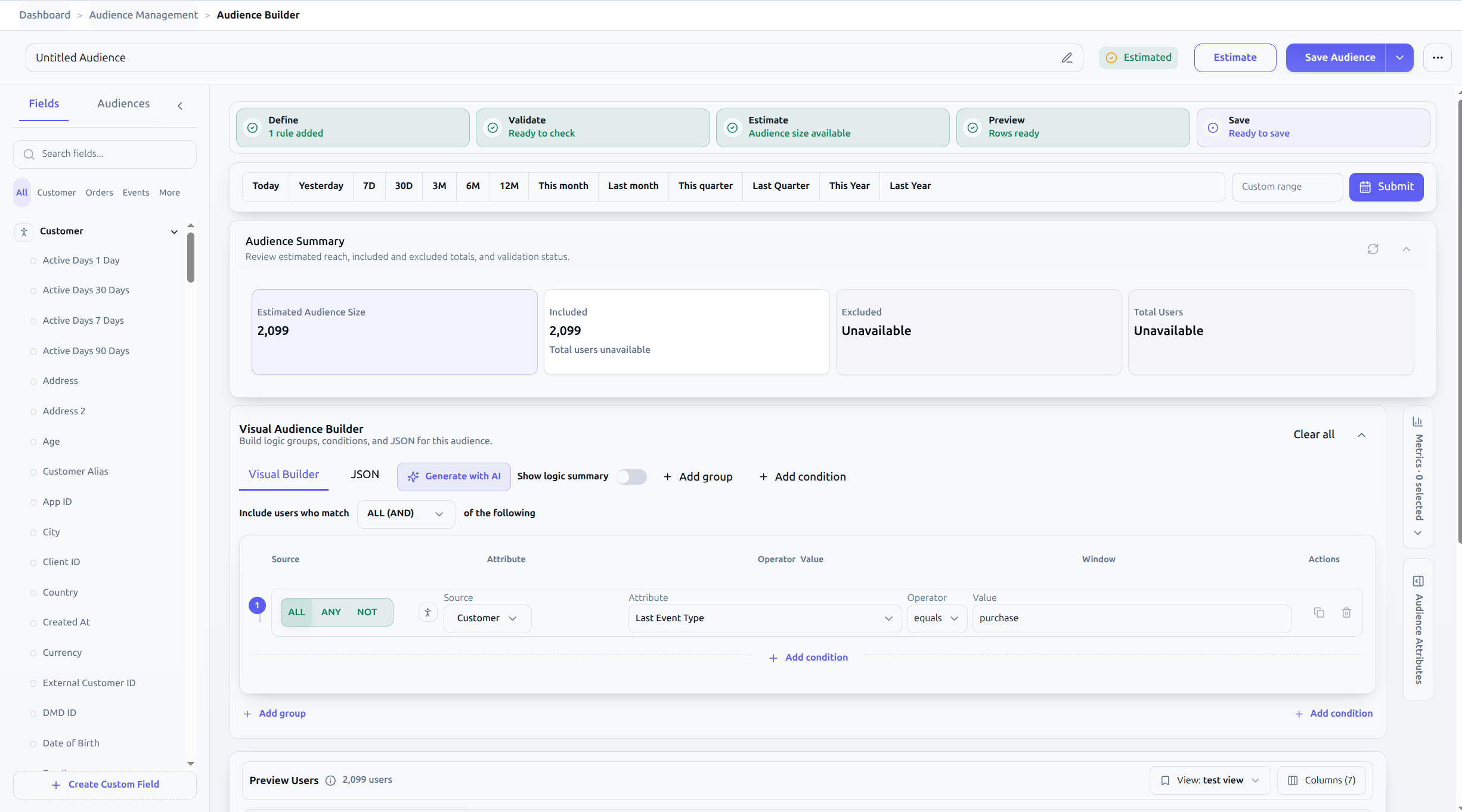
- Header & Status Bar: Controls audience naming, lifecycle status, global date filters, and primary persistence buttons.
- Catalog Drawer (Left): Collapsible panel providing access to the searchable field catalog, custom fields, and existing saved audiences.
- Visual Builder Canvas (Center Top): The primary editing surface for nested rule logic, time windows, and operator selections. Also includes a toggle to inspect the raw JSON payload.
- Audience Summary (Right Side): Displays real-time estimated size, included vs. excluded counts, and condition-by-condition impact waterfalls.
- Preview Users Grid (Center Bottom): Displays paginated customer sample records populated based on selected preview attributes.
4. Canonical 5-Step Lifecycle Walkthrough
Every audience follows an explicit 5-step operational lifecycle:

Step 1: Define Rules
- Enter a descriptive audience name using the standard naming convention:
[Intent] - [Criteria] - [Window] - [Channel]. - Add positive inclusion conditions and negative exclusion groups using the Visual Builder or the natural-language Generate with AI prompt.
Step 2: Validate Logic
- Click Validate. The system checks for empty condition blocks, invalid date ranges, or mismatched data types, updating the status badge to Valid or Needs fixes.
Step 3: Estimate Reach
- Click Estimate. The query engine computes live reach against ClickHouse and displays the Estimated Audience Size and rule impact breakdown in the summary panel.
Step 4: Preview Sample Rows
- Open the Audience Attributes drawer and select key identifiers (Name, Email, Country).
- Review actual matching customer rows in the preview grid to confirm that your logic targets the intended population.
Step 5: Save Audience
- Click Save Audience (or Save as Draft if still finalizing).
- The definition is stored permanently and registered for downstream campaign routing.
5. Validation Rules & Operational Guardrails
- Lookback Limit: Condition time windows and global date ranges cannot exceed 365 days.
- Empty Group Prohibition: Any rule group added to the canvas must contain at least one configured condition; empty containers will fail validation with code
missing_filters. - Workspace Boundary Protection: If your active workspace changes while working in the builder, the application automatically clears unsaved rules (
shouldResetAudienceRuntimeForScopeChange) to prevent accidental cross-tenant contamination.
6. Troubleshooting & Error Playbook
| Symptom | Probable Root Cause | Actionable Resolution |
|---|---|---|
| Status shows Needs fixes or Invalid | One or more condition cards are missing a selected field, operator, or comparison value. | Click on the flagged condition in the Audience Summary list to jump directly to the invalid row and complete the field. |
| Status shows Estimate stale | Rules, global dates, or exclusion logic were modified after the last estimate was executed. | Click Estimate again to recalculate reach. |
Preview table displays masked asterisks (j***@example.com) | Your user account does not possess the pii_read role, or the tenant has not enabled raw PII preview. | Contact your workspace administrator to grant PII clearance or add the X-Audience-PII-Access: true permission. |
| Estimated audience size is 0 | Overly restrictive filters or conflicting AND rules between mutually exclusive events. | Check if rules in an ALL (AND) group cannot occur simultaneously; adjust the group to ANY (OR) or widen the time lookback window. |
7. Downstream Handoff & Next Steps
Once your audience is successfully saved, proceed to:
- Audience Activation: Sync your audience segment to Google Ads, Meta Custom Audiences, TikTok, or outgoing webhooks.
- Campaign Module: Attach this audience to automated WhatsApp, SMS, or Email customer journeys.
- Funnel Reports: Measure conversion velocity and drop-off rates across stages for this specific cohort.
- Audience Query Payload Schema: Inspect the programmatic JSON contract for API integration.