Save, Export, and AI Generation
Once audience rules are validated and estimated, DriveMetaData provides persistence actions to save the definition, clone variants, export verification samples, or rapidly bootstrap new rule sets using natural-language AI generation.
1. Module Overview & Business Outcomes
This module governs the transition from experimentation to production deployment:
- Permanent Persistence: Commit audience definitions for automated campaign and ad network synchronization.
- Drafts & Variants: Save work-in-progress drafts or duplicate existing definitions to create A/B test variations without altering baseline logic.
- Natural-Language AI Rule Builder: Describe marketing criteria in plain English and automatically translate it into structured Boolean condition cards.
- Technical Interoperability: Export row samples to CSV or copy the canonical JSON query payload for developer debugging.
2. Prerequisites, Entitlements & RBAC
| Action | Minimum Role | Operational Precondition |
|---|---|---|
| Save Audience | Editor, Admin | Audience must be in Valid or Estimated state. Cannot have blocking errors. |
| Save as Draft | Editor, Admin | Can be saved at any stage, even with incomplete conditions. |
| Export Sample (CSV) | Editor, Admin | Preview rows and at least one output attribute must be loaded. |
| Generate with AI | Editor, Admin | AI Gateway integration enabled in workspace settings. |
3. Audience Status Lifecycle State Machine
The status badge in the header communicates the exact health and execution state of your audience:
| Status Badge | Meaning | Permitted Actions |
|---|---|---|
| Draft | Initial unfinalized state. | Edit rules, Validate, Save Draft. |
| Needs fixes / Invalid | Validation detected missing fields, bad operators, or illegal dates. | Fix flagged conditions. (Save blocked). |
| Valid | Rules passed syntax and integrity checks. | Estimate, Save Audience, Save Draft. |
| Estimated | Live reach calculated against ClickHouse. | Preview rows, Save Audience, Export CSV. |
| Estimate stale | Rules or date filters changed after last estimate. | Re-run Estimate, Save Audience. |
| Saved | Definition successfully written to Postgres. | Activate, Export, View Insights, Duplicate. |
| Unsaved changes | Existing saved audience was edited on canvas. | Validate, Estimate, Update Audience. |
4. Canonical Step-by-Step Workflows
Workflow A: Saving an Audience for Production Use
- Verify that the audience name adheres to the standard naming taxonomy:
[Lifecycle Stage] - [Behavioral Intent] - [Window] - [Target Channel]Example: Retention - Churn Risk High LTV - 30D - Meta Lookalike
- Confirm the status badge reads Valid or Estimated.
- Click Save Audience in the header.
- Select whether to create a New Audience or Update Existing Definition.
- Once confirmed, the audience ID is registered, and the status transitions to Saved.
Workflow B: Duplicating an Audience Variant
- Open an existing saved audience from the left catalog.
- Click the More actions (⋮) menu in the header and select Duplicate locally.
- The system generates a clone with
(Copy)appended to the name, resetting the audience ID. - Adjust specific conditions (e.g., changing lookback from 14 days to 30 days) and save as a new audience.
Workflow C: Natural-Language AI Rule Generation
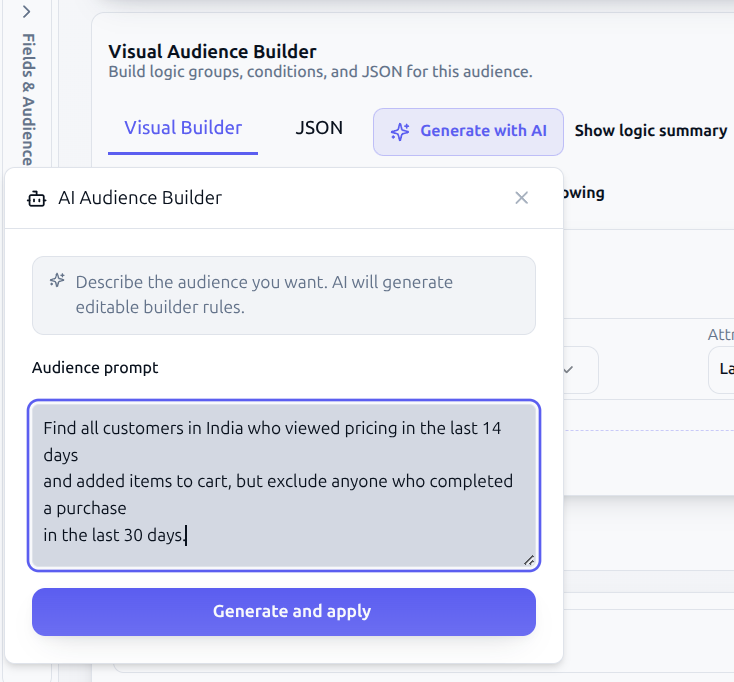
If you want to quickly build rules from an idea without manually navigating the field catalog:
- Click Generate with AI in the top action bar.
- In the modal prompt, write a clear, descriptive request:
Find all customers in India who viewed pricing in the last 14 daysand added items to cart, but exclude anyone who completed a purchasein the last 30 days.
- Click Generate Rules.
- The AI Gateway parses the intent, selects the corresponding catalog
memberpaths, configures operators, and populates the Visual Builder canvas. - Review the generated conditions, run Validate, and execute Estimate before saving.
warning
AI-generated conditions are drafts. Always inspect generated operator types, values, and time windows against actual business goals before deploying.
Workflow D: Exporting Sample CSV or Copying Query JSON
- Export Sample (CSV): Click Export Sample (CSV) above the preview table to download a spreadsheet of current preview rows for stakeholder sign-off.
- Copy Query JSON (
handleCopyJson): Toggle the editor view to JSON or click Copy JSON from the utility menu. The canonicalquery.filterspayload is copied to your clipboard for use in Postman, automated tests, or developer debugging.
5. Troubleshooting & Error Playbook
| Symptom | Probable Root Cause | Actionable Resolution |
|---|---|---|
| Save Audience button is disabled | Audience status is Needs fixes, Invalid, or validation has not been run. | Fix all condition errors and click Validate until the status turns Valid. |
| AI Generation returns error "Cannot map field" | Prompt references an attribute not present in the workspace data catalog. | Rephrase prompt using standard terms (e.g., "cart additions" instead of proprietary jargon). |
| Export Sample (CSV) is disabled | No preview rows have been loaded, or preview columns are empty. | Select preview attributes in the right drawer and run an estimate. |
| "Save failed: Network error" | Authentication token expired or database connection dropped. | Refresh authentication session; verify Client-ID and Workspace-ID headers are valid. |
6. Downstream Handoff & Next Steps
- Audience Activation: Push this saved audience to Google Ads Customer Match, Meta Custom Audiences, or TikTok.
- Campaign Module: Trigger targeted WhatsApp, SMS, or Email workflows using this audience segment.
- Audience Insights: Analyze statistical breakdowns, geographic distribution, and revenue drivers.
- Audience Query Payload Schema: Review the underlying JSON contract.