Profiles Directory & Audience Onboarding
The Profiles Directory in DriveMetaData serves as the central operational registry of all customer identities recognized across your organization. it aggregates both known and pseudonymous customer records into an interactive grid with real-time reachability metrics, consent tracking, and fast audience onboarding actions.
1. Module Overview & Business Outcomes
The Profiles Directory enables growth, CRM, and data teams to:
- Audit Identity Reachability: Instantly view what percentage of your customer base is reachable via email, mobile, or anonymous device cookies.
- Filter High-Intent Cohorts: Filter profiles by identity quality scores (0–100), engagement tiers, and acquisition sources.
- Execute Batch Marketing Actions: Convert selected profile rows into a new audience, append them to existing segments, export a CSV sample, or push directly to ad networks.
- Analyze Trend Telemetry: Visualize profile acquisition and identity verification volume using the integrated Chart Explorer.
2. Prerequisites, Entitlements & RBAC
| Operation | Minimum Role Required | Operational Precondition |
|---|---|---|
| View Profiles & Metrics | Viewer, Editor, Admin | Read access to workspace customer tables. |
| Export Profile CSV | Editor, Admin | Data export permissions enabled on user account. |
| Batch Audience Creation | Editor, Admin | Active Audience Builder access. |
| Push to Ad Platforms | Admin | Verified third-party ad connector tokens (Meta, Google, TikTok). |
3. Product Workspace Anatomy
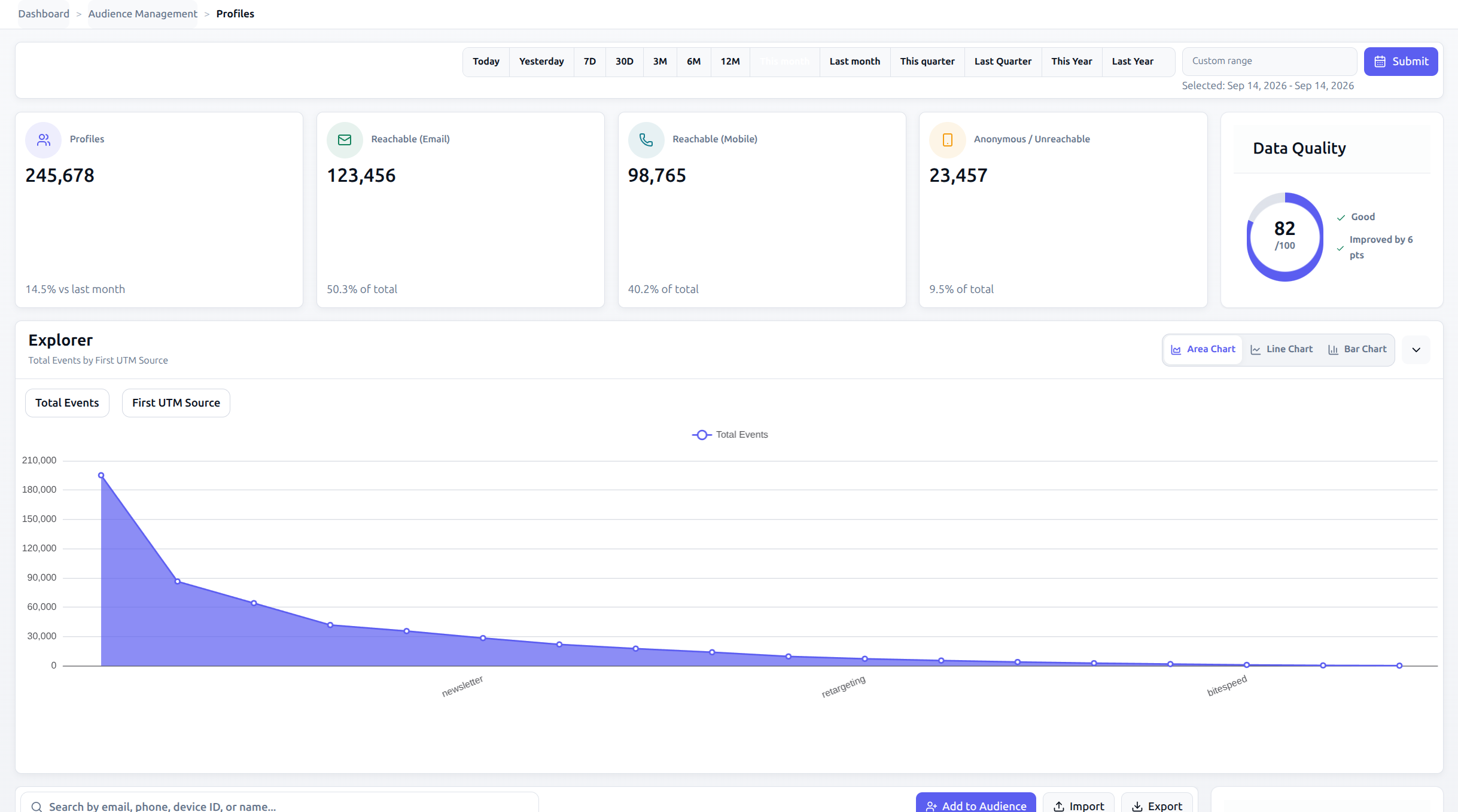
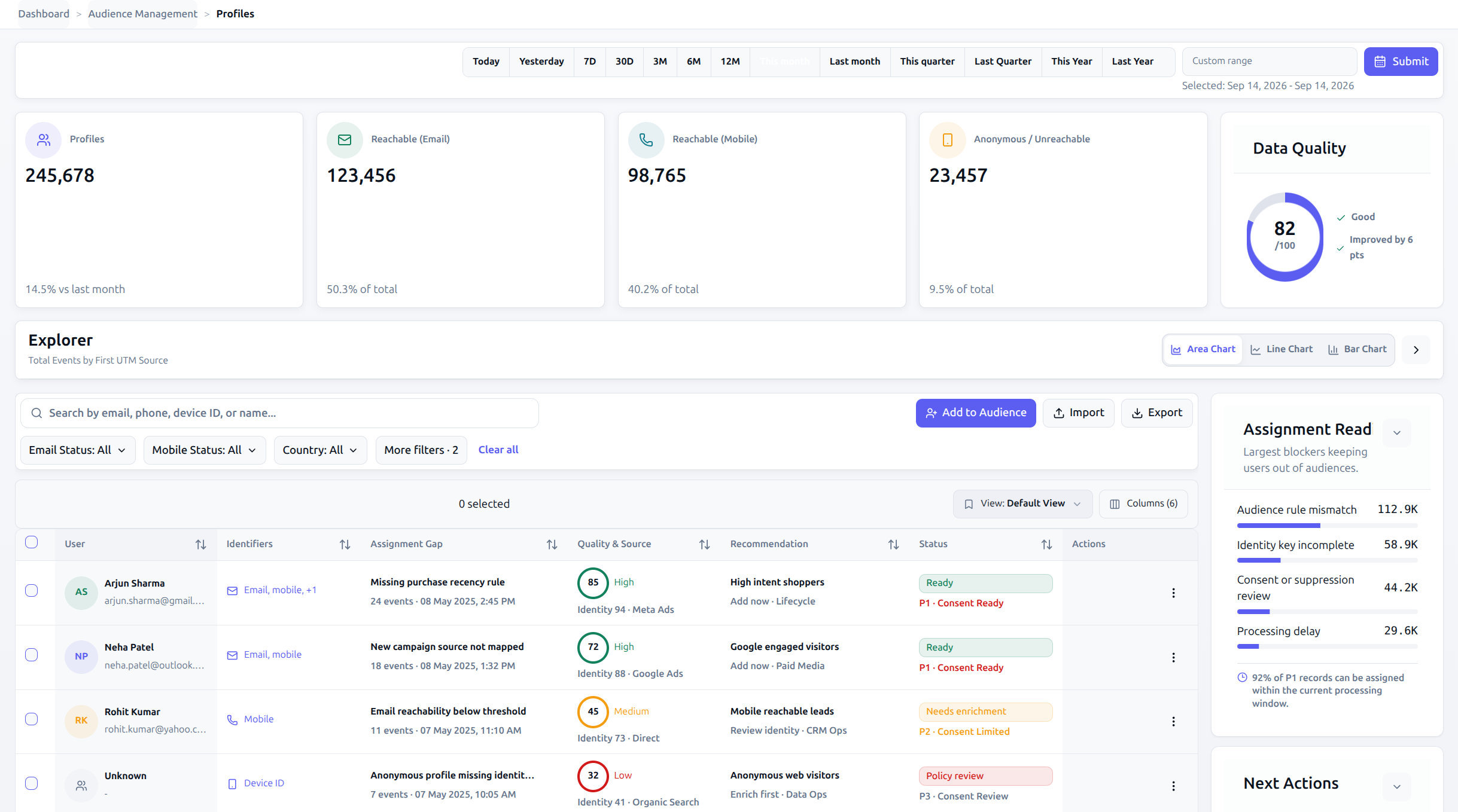
- Header Metric Tiles: Key reachability statistics segmented by communication channel.
- Quick Actions Strip: Multi-record workflow shortcuts for instant audience creation and export.
- Directory Grid: Multi-select enterprise data table displaying identity quality, channel availability, and consent compliance.
4. Canonical Step-by-Step Walkthrough
Step 1: Navigate to Profiles
- In the left-hand navigation sidebar, click Profiles.
- Direct route:
/profiles.
Step 2: Review Aggregate Reachability Metrics
Check the four top-level metric tiles:
- Profiles: Total recognized customer profiles in the active workspace.
- Reachable (Email): Number and percentage of profiles possessing a verified, opted-in email address.
- Reachable (Mobile): Profiles reachable via SMS or WhatsApp with verified phone numbers.
- Anonymous / Unreachable: Profiles tracked exclusively via anonymous cookies or device IDs.
Step 3: Search and Filter Profiles
- Use the Search bar to locate records by customer name, email address, or
DMD UID. - Apply operational dropdown filters:
- Consent Filter: Restrict rows to
Ready(fully opted-in),Limited(transactional only), orReview(quarantined). - Status Filter: Isolate profiles that are
Readyfor activation vs. those needingEnrichment. - Channel Filter: Select profiles reachable on specific channels (e.g.,
Email).
- Consent Filter: Restrict rows to
Step 4: Execute Batch Marketing Actions
To take action on a specific cohort:
- Check the selection boxes on individual profile rows, or click the header checkbox to select all visible rows.
- Select an action from the Quick Actions bar:
- Create New Audience: Opens the Audience Builder with selected
DMD UIDrecords pre-loaded into an inclusion rule. - Import into Existing Audience: Select a target saved audience to append these customer profiles.
- Export Users: Downloads a clean CSV containing customer names, masked contact details, and identity scores.
- Push to Ad Platforms: Direct sync to Meta Custom Audiences, Google Customer Match, or TikTok Audiences.
- Create New Audience: Opens the Audience Builder with selected
Step 5: Explore Visual Cohort Distributions
- Toggle open the Chart Explorer Panel above the grid.
- Switch between Area Chart, Trend Chart, and Bar Chart to evaluate acquisition velocity, channel distribution, or identity quality tier breakdown.
Step 6: Drill Down to Individual Customer 360
- Click on any customer name or avatar (e.g., Arjun Sharma).
- The application routes immediately to the individual's Customer 360 Dossier at
/customer-360-profile/[customerId].
5. Operational Guardrails & Governance
- Batch Push Ceiling: Direct push to third-party ad networks is capped at 1,000 profiles per batch from the directory UI to avoid API rate limiting. For larger audiences, build an audience in Audience Builder and use automated background sync.
- Consent Gating: The system strictly prohibits pushing profiles marked as
RevieworLimitedto external ad platforms. Unconsented rows in a selection batch are automatically stripped before sync payload transmission.
6. Troubleshooting & Error Playbook
| Symptom | Probable Root Cause | Actionable Resolution |
|---|---|---|
| Profile displays "Unknown" with low quality score | Anonymous web visitor tracked via browser cookie with no form submission or login yet. | Profile will automatically resolve and enrich once the user signs in or completes a purchase. |
| "Push to Ad Platforms" button is disabled | One or more selected profiles have Limited or Review consent, or ad connector token is expired. | Uncheck non-consented profiles or refresh ad platform credentials in Settings. |
| Search returns 0 matching records | Typo in search string or search query is too specific across multiple filters. | Clear status and consent dropdown filters and retry searching by partial email or last name. |
| Exported CSV contains masked email values | User account lacks pii_read administrative clearance. | Request elevated PII export clearance from your workspace administrator. |
7. Downstream Handoff & Next Steps
- Customer 360 Profile Guide: Inspect an individual profile's timeline, touchpoints, and dynamic workbenches.
- Build Audience Rules: Target customer profile traits in the visual rule builder.
- Audience Activation: Configure scheduled synchronization to ad networks.