Templates Module Overview
The Templates module in DriveMetaData (DMD) allows marketing and growth teams to create, preview, edit, and analyze reusable messaging templates across five major communication channels: SMS, Email, WhatsApp, Push Notification, and Web Notification.
Use the Templates module when you want to build high-converting content, maintain brand consistency, map dynamic personalization variables, and monitor template engagement metrics across your marketing campaigns.
Before you start
Before working in the Templates module, ensure that:
- You have active workspace permissions to manage messaging templates.
- Your target communication channels (SMS provider, Email domain, WhatsApp Business Account, FCM/APNs) are connected in workspace settings.
- Personalization attributes (e.g.,
first_name,account_balance,discount_code) are synced in your customer data engine. - Media assets (images, videos, PDFs) are uploaded to the workspace Media Library if required for rich templates.
Navigation and Channel Switcher
Access the Templates workspace by navigating to /templates in the main workflow navigation.
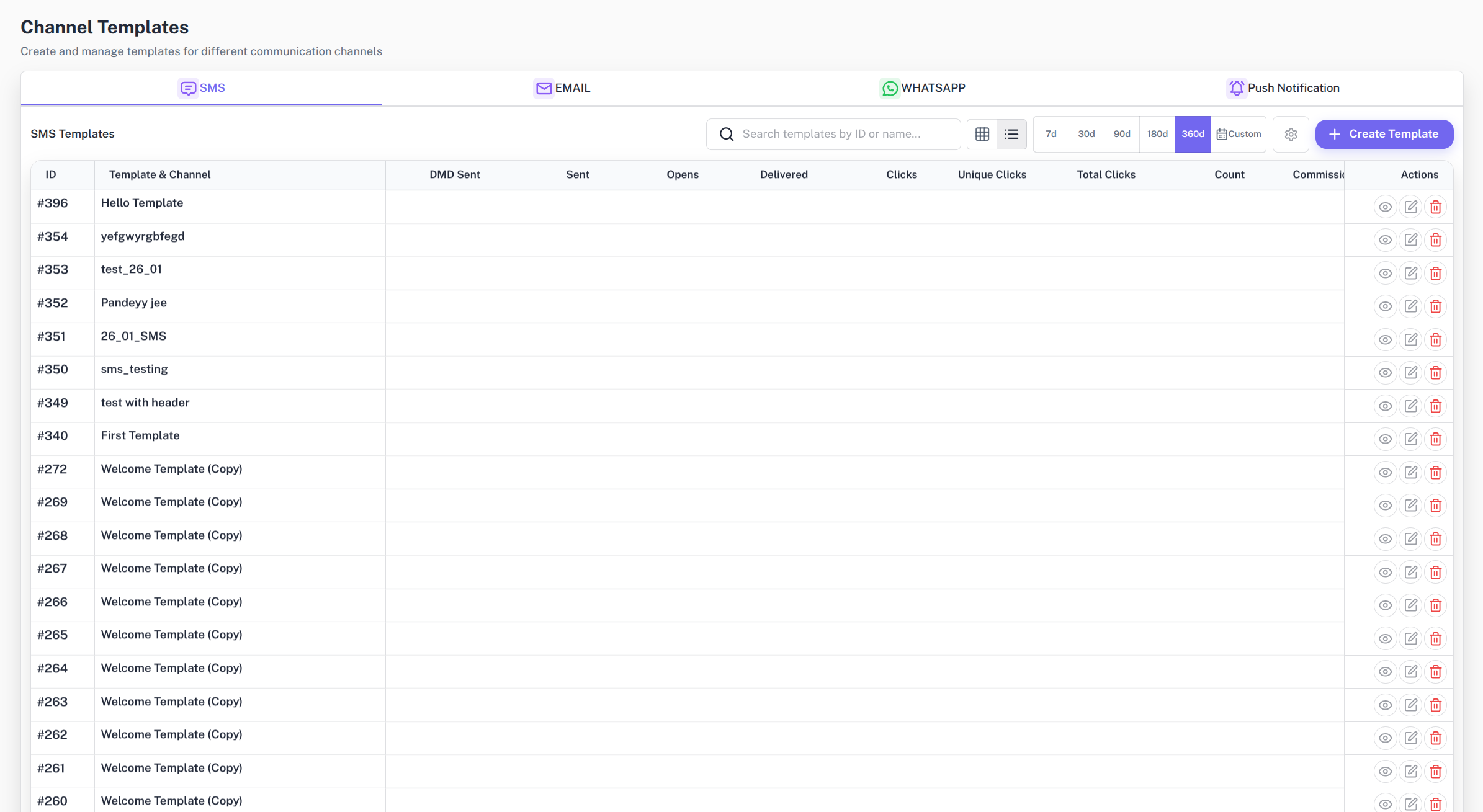
The top tab bar allows you to filter and switch between channel-specific template lists:
| Channel Tab | Primary Use Case | Key Features |
|---|---|---|
| SMS | High-urgency text messages | Character counter, GSM encoding indicator, dynamic attribute insertion, AI generator |
| Rich HTML & marketing emails | Subject line, HTML/Base64 code editor, header/footer configuration, visual preview | |
| Interactive WhatsApp messages | Meta-approved Standard & Carousel formats, rich media headers, Quick Reply & Call to Action (CTA) buttons | |
| Push Notification | Mobile application push | Android & iOS platform controls, rich image banners, deep links, custom JSON key-value pairs |
| Web Notification | Browser push notifications | Title, body copy, icon/image URLs, click-through action URL |
Grid vs. List View
You can switch between Grid View and List View using the layout toggle button in the page header. DMD saves your preferred view mode automatically across sessions.
Grid View
Grid view displays each template as a visual card:
- Displays template name, ID, status (e.g.,
Active,Draft,Approved), and last updated date. - Shows channel badge, language, and card category.
- Provides quick action buttons: Preview, Edit, Clone, Delete, and Test Send.
- Displays key performance summary cards (Total Sent, Total Opens, Click-Through Rate).
List View
List view presents template metadata and performance measures in a high-density, customizable table:
- Ideal for comparing metrics across large template libraries.
- Features selectable static columns (Template Name, ID, Channel, Category, Status, Created Date).
- Integrates dynamic analytics measures driven by workspace reporting.
Analytics and Column Customization
The Templates module features built-in analytics controls to analyze historical performance before using a template in a campaign.
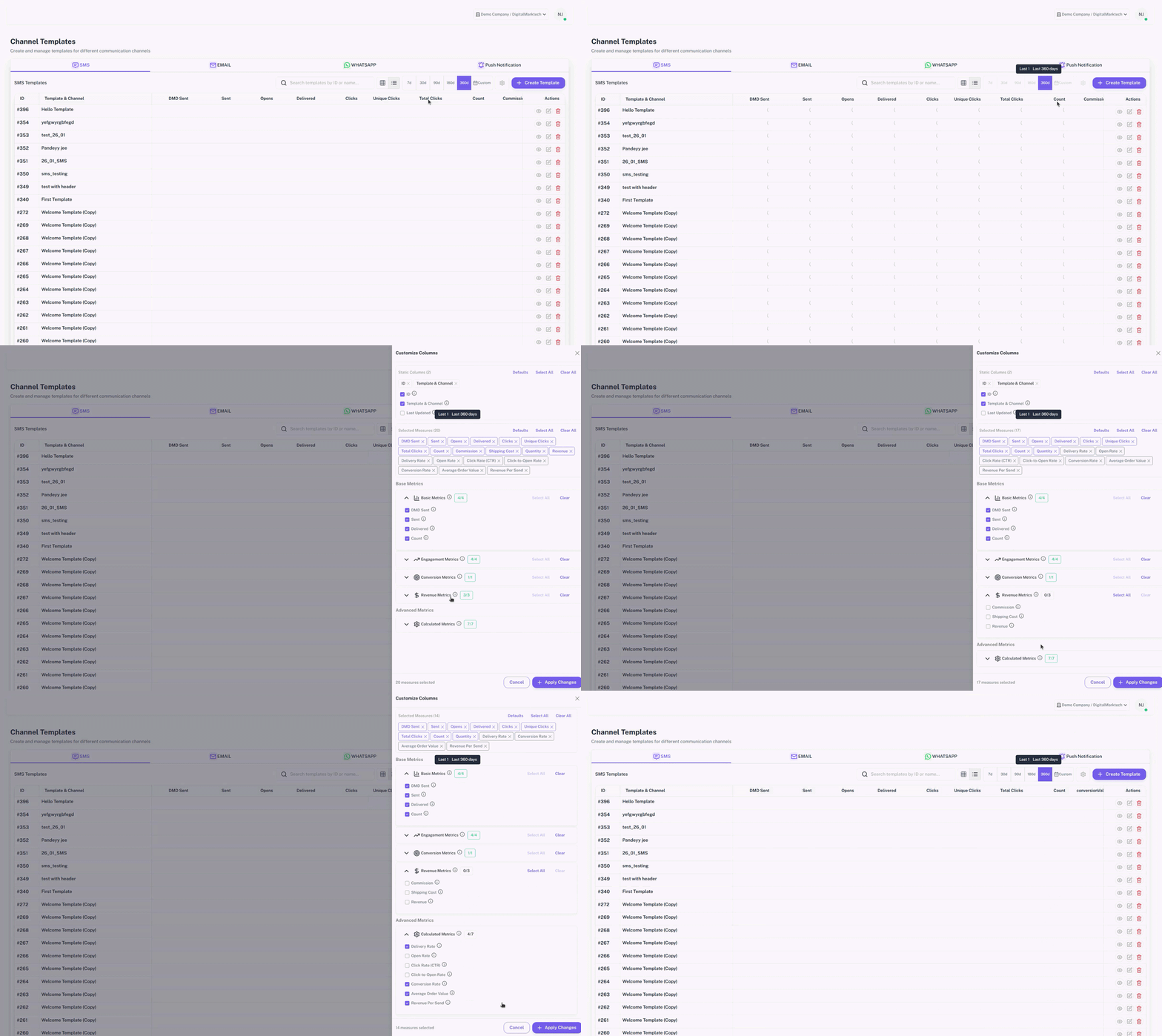
Customize Table Columns
Click Customize Columns on the template list header to customize visible measures:
- Select from default measures: Sent, Opens, CTR, and Clicks.
- Toggle additional metrics provided by workspace analytics integration.
Date Range Selection
Filter engagement analytics across predefined or custom date ranges:
- Last 7 Days, Last 30 Days, Last 90 Days, Last 180 Days, or Custom Range.
All search queries, active channel tabs, pagination states, and date range filters are reflected directly in the browser URL. You can bookmark or share URL links directly with team members.
Core Template Actions
From the template management interface, you can perform the following actions:
- Create Template: Opens the channel-specific creation wizard or full-screen editor.
- Edit Template: Modify template copy, variables, buttons, or media attachments.
- Preview Template: Launch a realistic mobile or desktop preview dialog showing accurate layout rendering.
- Clone Template: Duplicate an existing template to quickly iterate on copy or create variations.
- Delete Template: Remove outdated templates from the workspace library.
- Send Test Message: Dispatch a live test payload to verified admin phone numbers or email addresses.
QA Checklist
Before linking a template to an active campaign, verify the following:
- Template copy contains no broken variable tags (e.g., check
{{first_name}}syntax). - For Meta WhatsApp templates, status is Approved in Meta Business Manager.
- All media attachment URLs (images, videos) render properly in preview mode.
- Action buttons (URLs, phone numbers, deep links) point to active destinations.
- Fallback example values are provided for missing user attributes.
Common Issues
| Issue | Cause | Resolution |
|---|---|---|
Meta WhatsApp template stuck in Pending | Meta approval takes up to 24 hours | Wait for Meta sync or check Meta Business Manager for policy warnings |
| Dynamic variable shows blank in preview | Missing sample payload data | Enter fallback values in the preview variable mapping panel |
| Email template layout breaks | Malformed HTML or unsupported CSS | Use inline CSS and validate HTML code in the email editor preview |
| Test SMS fails to deliver | Unverified recipient number | Ensure recipient phone number includes international country code (e.g., +1) |