Funnel Settings Reference
Use this reference when choosing a control or explaining an unexpected result. For a complete checkout example, start with the Funnel Report Guide.
This reference describes the builder with Hours/Days, Save Draft, and Publish controls.
Funnel Settings
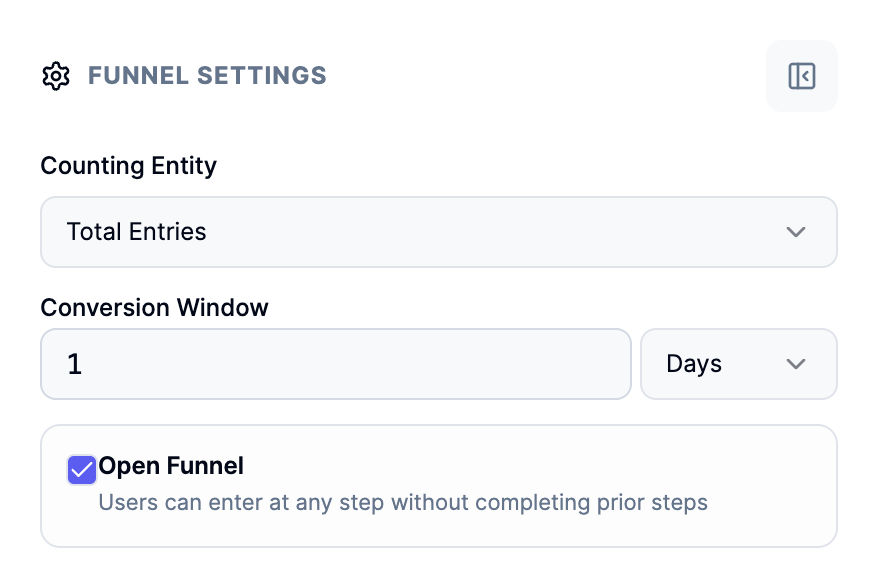
These settings decide which journeys to examine and how much time they have to finish.
Example configuration: Total Entries, 1 Day, Open Funnel
With Counting Entity set to Total Entries, repeat entries by the same customer can create separate journeys. Conversion Window: 1 Day allows up to 24 hours between consecutive required steps. Checking Open Funnel allows a journey to begin at a later step without completing the earlier steps; the remaining steps must still follow in order.
For an Add To Cart → Purchase funnel, this configuration can include purchase-entry journeys without an earlier cart action. It therefore answers a different question from “How many cart starters purchased?” To answer that question, turn Open Funnel off. The walkthrough also uses User to count customers rather than repeated entries.
Counting Entity: what are we counting?
A counting entity is the unit used for the main Reached, Advanced, Dropped, and Converted counters. Choose it to match your question.
| Option in the builder | What it means | When to use it |
|---|---|---|
| User | Examine the earliest eligible entry for each customer in the report period. Repeat visits do not automatically create additional selected journeys for that customer. | “How many customers followed this path?” |
| Session | Examine the earliest eligible entry for each session. A customer can have more than one session. | “How effectively does each visit lead to conversion?” |
| Total Entries | Examine every eligible entry, including repeat entries by the same customer. | “How many attempts or entry journeys progressed through this path?” |
A customer/user is a person represented by a customer identity. A session is a tracked visit identified by a session ID; the exact session rules depend on your tracking setup. An entry is an event that starts a selected funnel journey. A journey is the sequence of qualifying events followed from that entry.
Example: One customer starts checkout twice in the same session. User and Session select the first eligible entry for their respective unit. Total Entries can examine both checkout attempts. These options can therefore produce different results from the same activity.
:::tip Choose one unit before comparing results Keep the counting entity consistent when comparing campaigns or reporting periods. “100 customers” and “100 entry journeys” describe different things. :::
Conversion Window: how long can the journey take?
The conversion window currently limits the wait between consecutive required steps. Set a number and choose Hours or Days. It does not impose one total deadline from entry to the final step.
For example, with a 24-hour window, Checkout → Payment after 20 hours and Payment → Purchase after another 20 hours can qualify. Each transition takes less than 24 hours, although the full journey takes 40 hours. A step-specific wait limit, when configured, replaces the default for that transition.
- 24 hours: useful when customers usually buy soon after beginning checkout.
- 7 days: useful when customers often return after considering a purchase.
- A longer window may suit a longer buying cycle, if supported by your workspace.
If the next required action occurs after the allowed wait from the preceding reached step, it does not advance that selected journey.
Report dates and conversion window are different. Report dates define the period being analysed. The conversion window defines the allowed wait between consecutive steps. Events must also fall within the report scan period; a longer conversion window does not automatically include events outside it. Setting a 7-day conversion window does not select a 7-day report period.
Open Funnel: must everyone start at Step 1?
| Setting | Meaning | Example |
|---|---|---|
| Off: closed funnel | Entry must begin at the first step. The remaining steps must follow in order. | Measure shoppers who viewed a product, then added it to their cart, then purchased. |
| On: open funnel | Entry can begin at a later step without completing earlier steps. The remaining required steps must still follow in order. | Include shoppers who entered directly at checkout. |
An open funnel does not mean steps can happen in any order. It changes where a journey may begin.
:::caution Choose a closed funnel for conversion and drop-off analysis Open-funnel counters can include journeys that entered at different steps. Their rates do not reliably describe progression from Step 1 or loss between steps. Leave Open Funnel off when answering “What percentage of starters purchased?” Use an open funnel to explore entry activity, and examine Customers reached, Sessions reached, or Events reached separately at each step. See open-funnel limitations. :::
With User, the customer's earliest eligible entry is selected. If that journey cannot complete a required step, the report does not automatically retry every later entry for that customer.
With Total Entries, different entries can reach the same final event. One Checkout → Payment → Purchase sequence can start multiple journeys in an open funnel while containing only one purchase occurrence. Use Events reached at the purchase step when you need to understand how many distinct purchase events were selected.
Funnel Steps
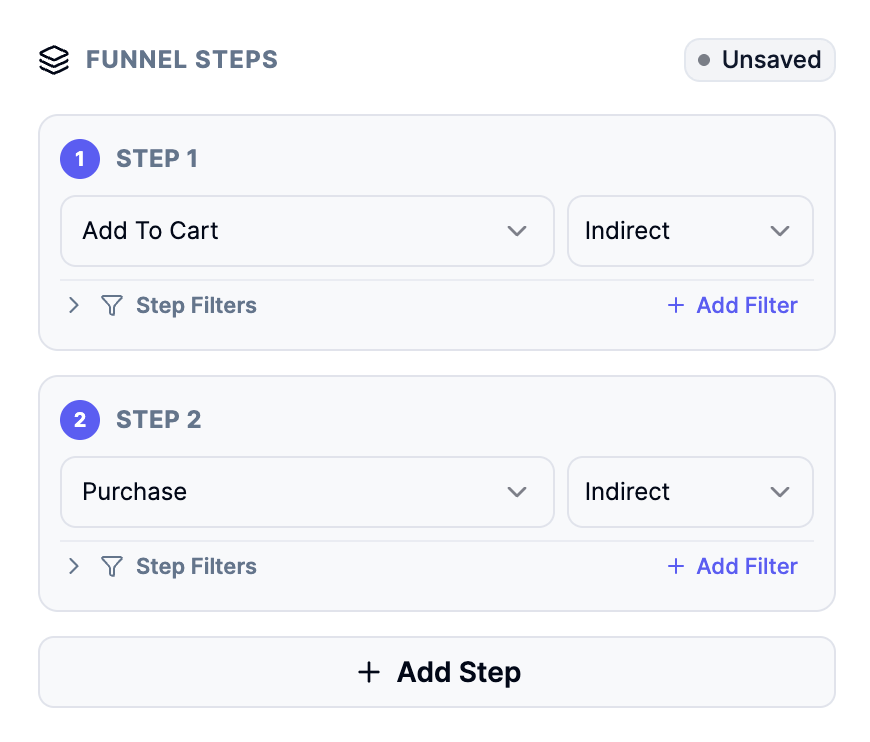
A step is an action that signals progress toward your goal. Put steps in the order you expect customers to follow.
Example steps: Add To Cart → Purchase
Select Add To Cart for Step 1 and Purchase for Step 2 to examine progress from a cart action to a purchase. Choose the equivalent tracked event names in your workspace.
The Indirect selector beside Purchase allows other actions between those milestones. The selector beside Step 1 does not describe a transition from a preceding funnel step. Expand Step Filters or choose Add Filter to narrow the events accepted at that particular step. Choose Add Step to insert another milestone; for example, put Checkout between Add To Cart and Purchase when you want to locate checkout drop-off.
The Unsaved badge means the definition has not been saved. It does not describe whether any customer purchased. With Open Funnel enabled, a journey may enter at Purchase, so these settings do not isolate cart starters.
Step number and event type
Step 1, Step 2, and so on show the journey order. The event type is the tracked action that qualifies a customer for that step—for example, product_view, add_to_cart, or purchase, if those events exist in your workspace.
An event name is the label you see in the selector. An event occurrence is one recorded instance of that action. One customer making two purchases can create two purchase occurrences of the same event type.
Choose Add Step to add the next milestone. The builder currently allows up to 12 steps and only shows a remove control when more than two steps are present. For an easy-to-read marketing report, begin with three to five meaningful milestones rather than every small interaction.
Follow mode: Direct or Indirect
The follow mode describes the relationship between a step and the preceding step. It is meaningful for transitions after the first step.
| Option | Plain-language meaning | Example |
|---|---|---|
| Indirect | Other actions may happen between the required steps. | Product view → Search → Add to cart can qualify for Product view → Add to cart. |
| Direct | The required next action must follow directly, without another action in between. | Product view → Add to cart qualifies; Product view → Search → Add to cart does not. |
Use Indirect for typical shopping journeys, where people browse or compare items. Use Direct to examine a specific immediate transition, such as whether an action leads straight to the next expected action.
Step Filters: which versions of this action qualify?
A step filter narrows the events accepted for one step. It does not automatically apply to every other step.
For example, filter the Product view step to Product category equals Shoes when you want that step to represent viewing shoes rather than any product.
Every filter has three parts:
| Term | What it means | Example |
|---|---|---|
| Field / property | A detail recorded with the event. | Product category, country, or device type, if available. |
| Operator | The comparison to make. | Equals, contains, or greater than. |
| Value | The detail you want to match. | Shoes, India, or 100. |
Available fields and operators come from your workspace's data catalog. Use the options shown for that field.
| Operator meaning | How to read it |
|---|---|
| Equals / not equals | Match one exact value, or exclude it. |
| In / not in | Match any value in a list, or exclude those values. Enter list values separated by commas when requested. |
| Contains / not contains, when offered | Look for text inside a value, or exclude that text. |
| Greater than / greater than or equal | Above a number, or at least that number. |
| Less than / less than or equal | Below a number, or at most that number. |
| Is set / is not set, when offered | Check whether the detail exists or is missing; no comparison value is needed. |
Multiple filters within a step must all match. For example, Country equals India and Device type equals Mobile accepts only events meeting both conditions.
A global/report filter applies to the report scope rather than a single milestone. Use a step filter for “this action must have this detail”; use report filters to narrow the report population. Avoid treating those two scopes as interchangeable.
Funnel status
The status badge identifies the definition's state: Unsaved means it has not been saved, Draft identifies a draft, and Published identifies a published definition. These describe the funnel definition, not whether customers converted.
Report Defaults
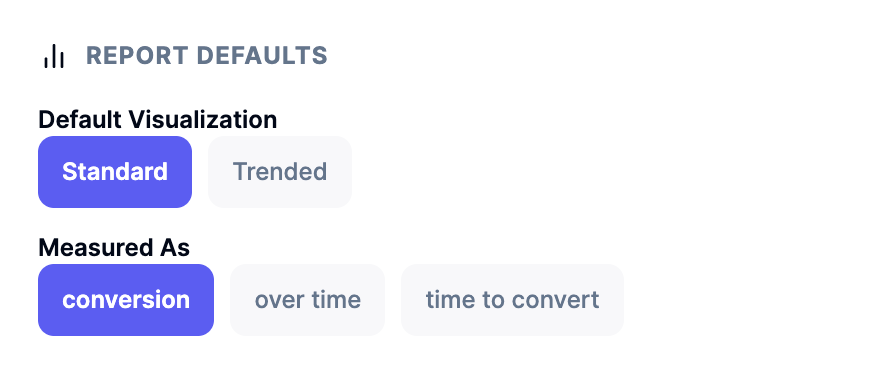
Defaults choose the report's starting presentation. They do not redefine which events qualify for your steps.
Selecting Standard under Default Visualization and conversion under Measured As starts with a step-by-step conversion view. These are separate choices: the first selects the presentation, and the second selects the measure. Use this combination for an initial report; choose Trended, over time, or time to convert when your question calls for the alternatives described below.
Default Visualization
| Option | What you see | Marketing question |
|---|---|---|
| Standard | A step-by-step funnel view for the selected report period. | “Where does our checkout journey lose people?” |
| Trended | Results grouped into time buckets. | “Did conversion change after our campaign launched?” |
A time bucket is one interval in a trend chart. Granularity chooses its size: Day, Week, or Month. Day gives more detail; Week or Month makes longer-term patterns easier to compare.
Measured As
| Option | Meaning | When to use it |
|---|---|---|
| Conversion | Examine progression and conversion through the funnel. | Identify the weakest transition. |
| Over time | Examine how funnel performance changes across the report period. | Compare patterns before and after a campaign or site change. |
| Time to convert | Examine elapsed time between milestones and from entry. | Decide when a reminder or recovery message may be useful. |
Time to convert is unavailable in the trended view in the current report controls; choose Standard to use it.
Elapsed time is the duration between selected events. Average is the total duration divided by the number of measured journeys. Median is the middle duration: half of measured journeys are faster and half are slower. Where shown, p90 and p95 mean 90% and 95% of measured journeys finish within that duration. They are timing measures, not conversion percentages.
Report dates, timezone, and comparisons
Choose a preset or custom report period before interpreting results. The timezone determines where a reporting day begins and ends; use the same timezone when comparing reports.
A comparison period is a second date range used as a reference. A delta is the change from that reference. For example, a rise from 100 to 120 reached customers is a 20% increase, not a 20-percentage-point change in conversion rate.
For conversion rates, distinguish percentage points from relative percentage change: a move from 10% to 12% is 2 percentage points, or a 20% relative increase. Check the displayed measure before describing a result to your team.
Breakdown Dimensions
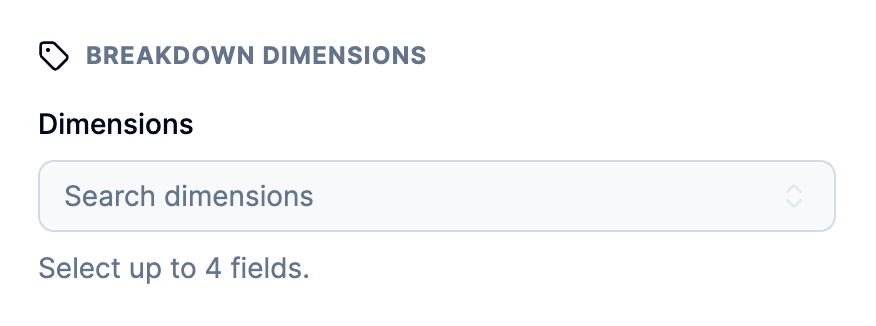
A breakdown dimension is a field used to split the same funnel into groups. It helps you compare performance without building a separate funnel for each group.
Search dimensions finds fields for grouping the results. With no selected fields, the report shows an overall view. When the selector says Select up to 4 fields, that is the selection limit for that workspace, not a requirement to select four. Begin with one field so the groups remain easy to compare.
Example: Choose Device Type to compare mobile and desktop. Choose Country and Device Type to see combinations such as India/mobile and India/desktop.
Choose and manage dimensions
- Search the Dimensions selector for a field.
- Select it to add a breakdown.
- Use the remove control beside a selected field to remove that breakdown.
- The selector shows how many dimensions your workspace allows. Start with one; extra dimensions can create many small groups.
- With no dimensions selected, read the report as an overall view rather than a split by customer group.
| Field, when available | Meaning | What you might investigate |
|---|---|---|
| Country | The recorded country value used for grouping. | Whether checkout performance differs by market. |
| Platform | The recorded platform, such as web, Android, or iOS. | Whether one platform has more drop-off. |
| Device Type | The recorded device category, such as mobile or desktop. | Whether mobile shoppers need a better checkout experience. |
| App ID | The identifier of the app associated with the data. | Compare connected apps; an ID is a reference, not a marketing metric. |
| Publisher ID | The recorded publisher identifier. | Compare publisher groups after checking which publisher each ID represents. |
| Workspace ID | The identifier of the workspace associated with the data. | Understand a workspace grouping when offered; this is not a customer identifier. |
The available list is workspace-specific. Additional catalog fields may appear; their meaning follows the field label and your tracking setup. If a field name is unfamiliar, confirm it with the person responsible for your event tracking before using it in a business conclusion.
The badges Text, Number, Boolean, and Time describe the kind of data stored in a field. Text means words, categories, or IDs; Number means numeric data; Boolean means true/false; Time means a date or timestamp. These badges do not describe how well that group converts.
A filter narrows the data; a breakdown groups the data. “Country equals India” limits the report to India. A Country breakdown shows separate country groups.
Understand the results
Journey counts
These counts use your selected Counting Entity. Keep that setting consistent when comparing reports.
| Term | What it tells you |
|---|---|
| Reached | How many selected users, sessions, or entry journeys reached this step. |
| Advanced | How many selected journeys reached a later step. For a closed funnel, this describes progress beyond the current step. |
| Dropped | How many selected journeys reached this non-final step but no later step. |
| Converted | How many selected units or journeys reached the final step. With Total Entries, several journeys can share one purchase event. |
Rates in the step table
| Displayed label | Calculation | How to interpret it |
|---|---|---|
| Conversion % | Reached at this step ÷ Reached at Step 1 × 100, within the same breakdown group. | In a closed funnel, the percentage of starters reaching this milestone. It is not the percentage advancing from the preceding step. |
| Drop Rate | Dropped at this step ÷ Reached at this step × 100. | In a closed funnel, the percentage reaching this milestone who went no further. The final step has no further required action. |
For example, if 1,000 customers reach Step 1 and 300 reach checkout, checkout's Conversion % is 30%. If 120 of those 300 go no further, checkout's Drop Rate is 40%. If 180 reach purchase, conversion from entry to purchase is 18%.
When Step 1 has no reached activity, there is no valid entry-based percentage to interpret. The table may display 0%; check the counts before sharing a conclusion. A dash in Drop Rate can also represent a zero rate; use Dropped to distinguish no drop-off from unavailable data.
Open-funnel limitations
With an open funnel, Advanced and Converted can include journeys entering after the displayed step, while Reached and Dropped describe journeys reaching that step. Reached may therefore differ from Advanced plus Dropped, and later-step counts can exceed Step 1's count. Conversion % and Drop Rate should not be used as precise measures of ordered progression in this mode.
Use distinct reached counts to describe activity at each step. To compare conversion from a shared starting action, rerun with Open Funnel off.
Distinct activity and missing values
| Term | What it tells you |
|---|---|
| Customers reached | Distinct customers attached to the selected events reaching this step. Missing customer IDs are excluded. |
| Sessions reached | Distinct customer/session pairs attached to selected events. Missing session IDs are excluded; tracking without a session column returns zero. |
| Events reached | Distinct event occurrences selected to reach this step. An event shared by several journeys counts once. |
| Overall | A row showing the report without a breakdown split. |
| — in a distinct activity column | The count is unavailable or cannot safely be combined. It does not mean zero. |
The customer, session, and event counts supplement the main counting-mode counters. They are deduplicated within each breakdown or time bucket. The same customer, session, or event may appear in more than one bucket, so do not add these counts to create a unique overall total.
Events reached counts occurrences, not event names or journey rows. If a purchase is selected by three qualifying journeys, it still counts as one reached purchase event. A later purchase is not included just because it happened; a selected journey must resolve to that occurrence.
Example: read the report chart and table
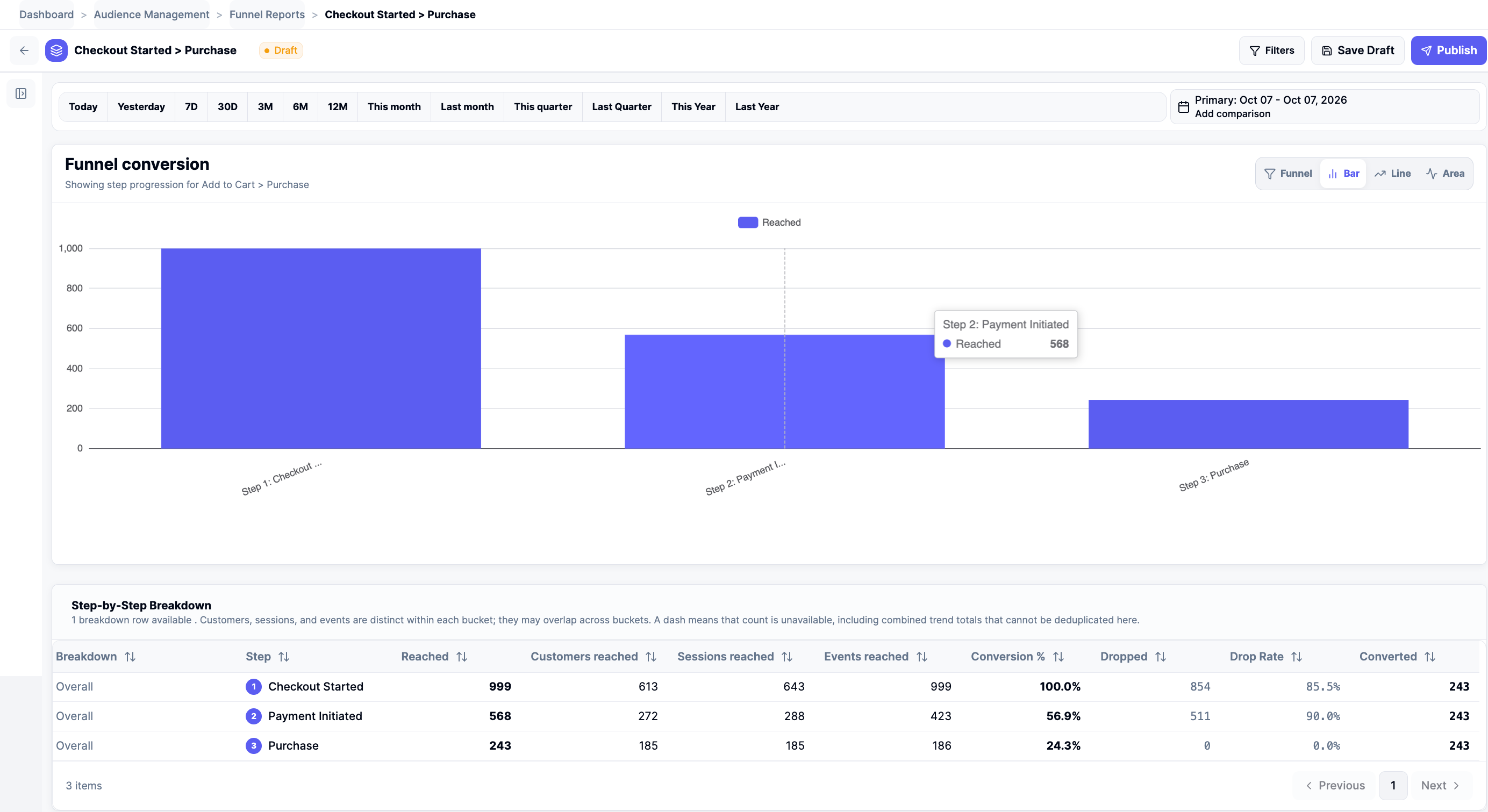
Open the report screenshot at full size. The exact counts are also provided in the text table below.
A report titled Checkout Started > Purchase can show three tracked milestones: Checkout Started, Payment Initiated, and Purchase. Read the actual step labels in the table to identify the measured path; the report name and chart subtitle alone may not describe every step.
In the supplied report example, Bar is selected. Each bar shows Reached for a step; hovering Payment Initiated shows 568. The date selector shows 7 October 2026 as the primary report period. The table provides the exact counts behind the chart:
| Step | Reached | Customers reached | Sessions reached | Events reached | Conversion % |
|---|---|---|---|---|---|
| Checkout Started | 999 | 613 | 643 | 999 | 100.0% |
| Payment Initiated | 568 | 272 | 288 | 423 | 56.9% |
| Purchase | 243 | 185 | 185 | 186 | 24.3% |
The displayed 24.3% is 243 ÷ 999 × 100, rounded to one decimal place. It compares reached counts with Step 1; it does not mean that 243 distinct customers purchased. The Purchase row separately reports 185 customers and 186 selected purchase events. Check Counting Entity before naming the unit in a business conclusion.
The example also shows 854 Dropped at Checkout and 511 Dropped at Payment. These are not the differences between consecutive reached counts: 999 − 568 is 431, and 568 − 243 is 325. Do not describe these rows as a simple closed-funnel loss sequence. Check the saved definition, including Open Funnel, and the counter limitations before drawing a progression conclusion.
The Draft badge describes the definition's saved state. Save Draft and Publish manage that definition; they do not change the meaning of the displayed counts. This report example is separate from the walkthrough's illustrative closed, User-counted funnel.
Example: two checkout attempts by one customer
10:00 Checkout → 10:05 Payment → 10:10 Purchase A
11:00 Checkout → 11:05 Payment → 11:10 Purchase B
Assume both attempts occur in one session, their events fall within the report period, and each transition meets its allowed wait.
| Counting Entity | Customers at Purchase | Sessions at Purchase | Distinct reached purchase events |
|---|---|---|---|
| User | 1 | 1 | 1 |
| Session | 1 | 1 | 1 |
| Total Entries | 1 | 1 | 2 |
User and Session select their earliest eligible entry, so later purchases are not automatically added. Total Entries can select both attempts. If the second attempt happens in a different session, the Session setting can select an entry for that session too.
Why does my funnel differ from a purchase report?
A purchase report may count all purchases. A multi-step funnel counts only activity that qualifies under its entry, step, ordering, filter, and timing rules.
To investigate all purchase occurrences, use a purchase-event report, such as a Pivot Report configured for the purchase event and its event count. To investigate purchasing customers, compare a distinct-customer measure instead. The visual funnel builder requires multiple steps, so use it to analyse a journey rather than as a purchase-only total.
Compare the same report dates, timezone, workspace, app, and event filters. Check that both reports have equally fresh data. Avoid comparing converted entry journeys with raw purchase totals.
Troubleshoot missing or unexpected results
No rows appear
- Check the workspace, report dates, and timezone. Select a period in which you know the starting event occurred, then rerun.
- Check event availability. Confirm with your tracking owner that each selected event is recorded in that workspace. A similar event name may represent a different action.
- Remove narrowing conditions for diagnosis. Save your intended settings in Notes, temporarily remove step/report filters and breakdowns, and rerun. If activity appears, restore one condition at a time to identify the exclusion.
- Check ordering and timing. Use Indirect when browsing actions can occur between steps. Confirm that the next event falls within the conversion window and the report period; increase the window only if it matches the journey you intend to measure.
Counts do not match another report
Compare the same dates, timezone, workspace, app, and filters. Then check Counting Entity, Open Funnel, and whether the other report counts all purchases or only qualifying journeys. Compare distinct purchase events with event counts, and distinct customers with customer counts. Do not add distinct counts across breakdown groups or time buckets.
You still cannot explain the result
Ask your workspace administrator or reporting support contact to review the definition. Include the funnel name or ID, report dates and timezone, counting entity, step names, filters, and the expected versus observed counts. Include the error text if generation failed. Share this information through your approved support channel; do not include customer-level records or credentials.
Saving controls
Generate Funnel Report runs the analysis. Save Draft preserves a definition you are preparing; Publish publishes it for reuse. Rerun after changing settings so the results reflect the current definition.
Related guides
- Funnel Report Guide — follow a checkout investigation from question to saved report.
- KPI Glossary — understand other reporting terms.